Git’s core purpose is to manage version history, allowing us to navigate between different versions of a codebase and understand what changed, when it changed, and how the code evolved over time.
In the previous two articles, we explored basic Git commands and how remote repositories integrate with Git. Now, let’s dive into Git history, understand how to navigate through different versions, and, more importantly, learn how to recover changes from earlier versions when something goes wrong in our code.
Below are commands which will be useful to do that.
- Restore
- Checkout
- Revert
- Reset
- Rebase
- Reflog
Git Restore
While working on a codebase, we often make changes to existing files. Sometimes, we realise that a particular change is unnecessary, or we simply want to go back to the previous state of a file. Instead of manually editing the file to undo those changes, Git provides a convenient command called git restore.
git restore file_name.py
git restore .
Specifying a file name will restore only that particular file, whereas using a dot (.) will restore all modified files in the repository. By default, Git restores the files to their state in the last commit, discarding all uncommitted changes.
Git checkout
The primary purpose of git checkout is to switch between branches, which can now be done using the git switch command. So, I won’t dig deeper into switching purpose.
Additionally, git checkout — file_name does the same thing as git restore.
Personally, I prefer using git switch and git restore for these specific use cases.
So, what else can we do with git checkout?
One useful feature is navigating to a specific commit that is not the HEAD of any branch. In other words, we can detach the HEAD and browse the entire codebase as it existed at that particular point in time. This helps us understand the state of the files at a specific commit.
To bring one or a few files as they were in an old commit into my working directory (not all files), I can use git checkout mentioning commit name and files names. This replaces those files with their versions from that commit and stages them.
git checkout <commit>
git checkout <commit> — <file1> <file2>
Git reset and revert
During development, we may sometimes introduce a bug or an issue that gets committed before we realise it. When that happens, we may need to undo the commit and bring the codebase back to an earlier state.
Git provides two commands for this: git revert and git reset. Both commands help undo commits, but they work differently.
git revert creates a new commit to undo the changes, whereas git reset moves the branch pointer back to an earlier commit, removing subsequent commits from the branch history.
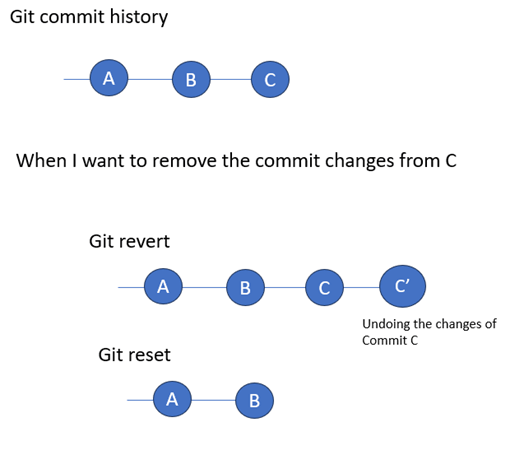
In git reset, there are three options.
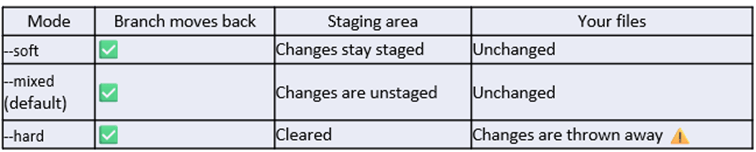
Note: git reset rewrites commit history by removing subsequent commits from the branch, so use it with caution.
Rewriting Git Commit History: Rules and Best Practices
As seen in the git reset, history can be rewritten in some of the git commands. However, any rewriting history activity should be done carefully, as it can affect other developers working on the same repository.
- Don’t rewrite history that other developers already have.
- This is the most important rule. If commits have already been pushed to a shared branch, such as main or develop, and other developers have pulled them, rewriting those commits will affect their local histories.
- A force push is required to update the remote history.
- Since rewriting commits changes their commit hashes, a normal push will be rejected by Git.
- Communicate with your team if rewriting shared history is unavoidable so that they re-clone
- When you need to preserve exact chronological record of git commits
Git Rebase
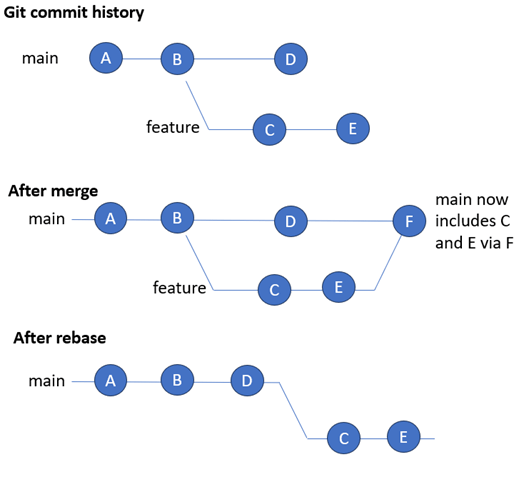
Git rebase serves two purposes: integrating changes from one branch into another and rewriting the commit history.
A common question that arises is: if git rebase is used to integrate branches, why do we need a separate command like git merge?
Although both commands integrate changes from different branches, they do it differently. While git merge preserves the existing branch history by creating a merge commit (when necessary), git rebase reapplies commits on top of another branch, resulting in a cleaner, linear history.
The second purpose of git rebase is to clean up the commit history. For example, we can combine multiple commits into a single commit, modify existing commit messages, or drop unnecessary commits.
In both the purposes, the git rebase meant for maintaining a clean and linear commit history. And the important point, whenever the history rewriting happens, follow the rewriting rules.
Git Reflog and Recover the lost work using reflog
git reflog is Git’s local log of everywhere your HEAD and branch tips have pointed, including commits that a reset, rebase or branch deletion has removed.
What can we use git reflog to get back lost work?
- git reflog merely a information command
- Using git reflog we can understand the complete branch tips and history, and we can use the right commit id which work need to get back
- And checkout from that commit, so that lost work comes back.
Limitations of reflog
- It is applicable only in local. If the local repository is gone and clone newly then can’t be retrieved.
- It is not permanent, according to git documentation only 90 days by default
Git Reflog and Recovering Lost Work
Git provides a useful command called git reflog to help us recover work that we might have accidentally lost. It maintains a local record of where HEAD and branch references have pointed over time, including commits that are no longer part of the current branch history due to operations such as reset, rebase, or branch deletion.
How can we use Git Reflog to recover lost work?
- Identify the lost commit: git reflog is primarily an informational command that displays the history of changes to HEAD and branch references.
- Find the required commit: By reviewing the reflog entries, we can identify the commit ID associated with the work we want to recover.
- Recover the work: Once we identify the required commit, we can use git checkout <commit-id> to access that version of the code and recover our lost work.
Limitations of Git Reflog
- Local repository only: Reflog information is maintained locally. If the local repository is deleted and a fresh clone is created, the previous reflog entries cannot be recovered.
- Not permanent: Reflog entries are subject to expiration. By default, Git keeps reachable entries for 90 days.
Demo
- Prepare a Git repository with an existing commit history.
- Rewrite the commit history using git rebase.
- Use git reflog to identify the old commit containing the work we want to recover.
- Use git checkout to switch to that commit and create a new branch from it.
A git repo with 3 commits.
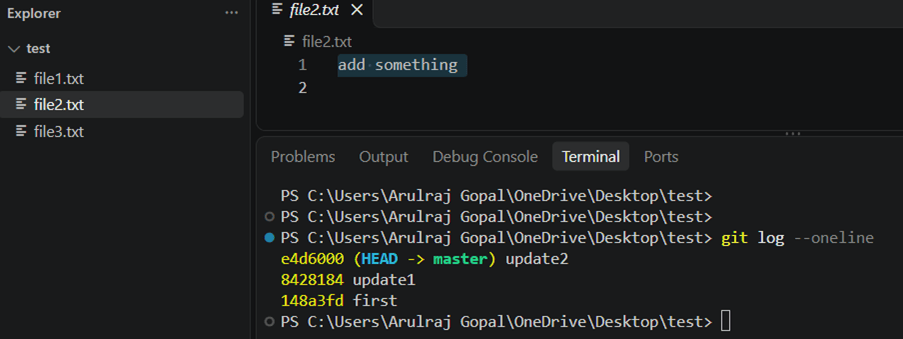
Rebase it.
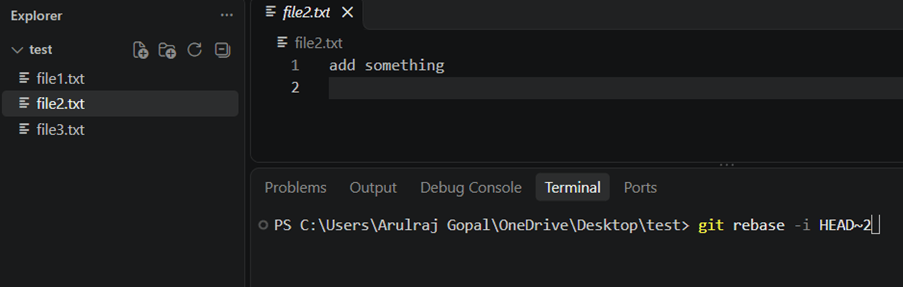
Do the keyword/commands change as per need and then close the window for next step.
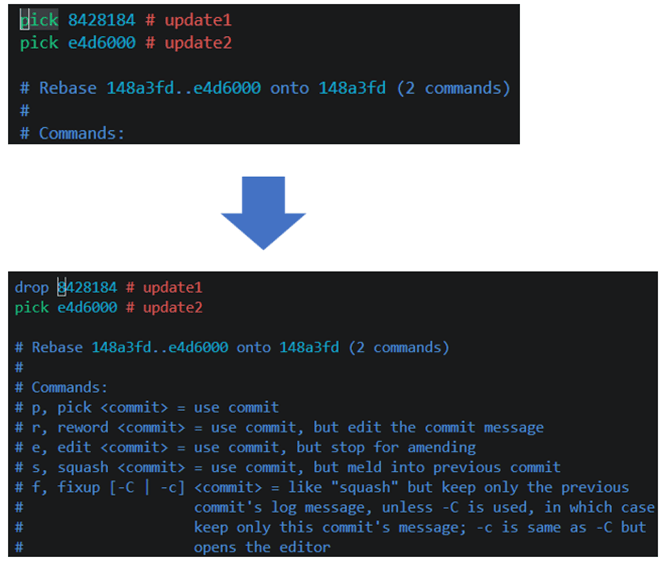
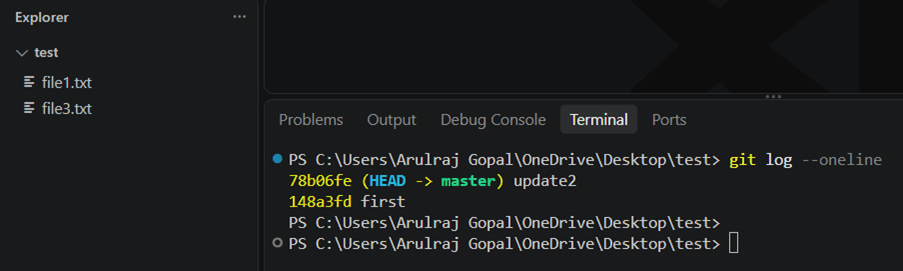
Now the commit “8428184” is removed.
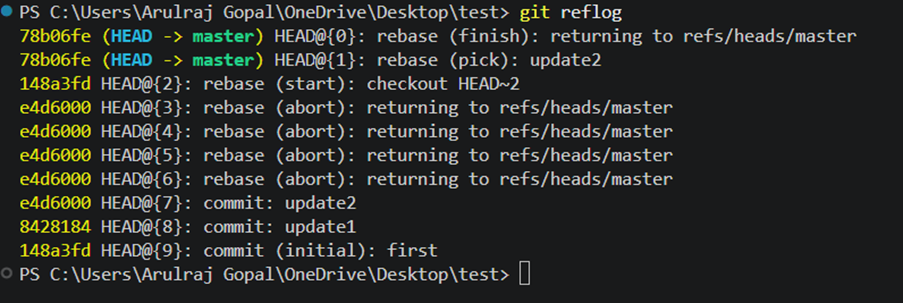
If we already know the commit ID, we can directly git check-out. But what if we are working with a complex Git repository and don’t know the commit ID?
This is where git reflog comes in. It displays the history of where HEAD and branch references have pointed, helping us identify the required commit ID and recover the lost work.
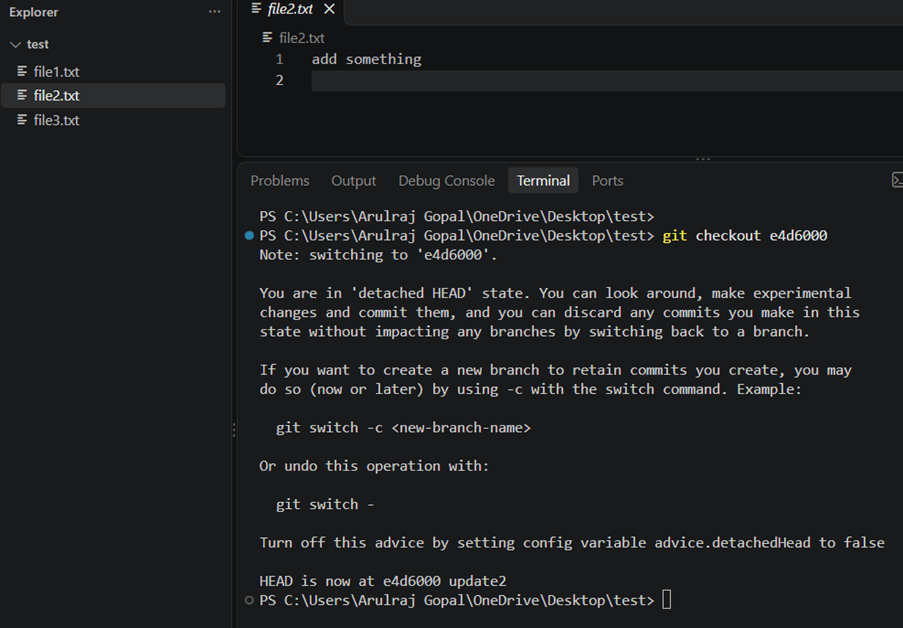
Then git checkout. The lost commit is back, it is up to us whether it can be changed the reference to this branch or discard it.
Conclusion
Understanding these Git commands gives us better control over code history, helping us navigate between versions, restore changes, undo commits, and maintain a clean commit history. Together, they make everyday Git operations easier and give us the confidence to manage code changes effectively.
Happy Learning!!
References

Leave a Reply