Before AI, a developer might write 100 lines of code in a day and know almost every line and its logic, because they typed it themselves. Git usage was relatively straightforward: add, commit, and push.
But the moment a developer or team adopts an AI coding agent; the pace changes dramatically. In just a few minutes, multiple files can be modified and hundreds of lines can be added or changed. But there is a cognitive debt that comes with it. Everything feels fine, until an issue is raised.
The moment someone needs to debug the code, it can feel like walking into a room you built yourself but no longer remember how you built.
This is where disciplined Git practices become more important than ever.
In the AI age, small and meaningful commits are not just good Git practice—they are essential for maintaining understanding, traceability, and confidence in the code.
In this and the upcoming articles, I’ll be covering some of the fundamental concepts of Git.
Key points for git best practices
- Keep commits atomic
- Write meaningful commit messages
- Review the diff before committing
- Pull and synchronize frequently to avoid large change sets
- Use tags and releases to mark stable versions
Git basic commands with one-liner
- git init — Initializes a new Git repository in your project.
- git status — Shows the current state of your working directory and staging area.
- git log — Displays the commit history of the repository.
- git add — Stages changes so they can be included in the next commit.
- git commit — Records the staged changes as a new commit in the repository.
How a commit should be
A commit should represent one logical change—small, focused, and easy to understand.
When someone looks at a commit later, they should be able to quickly answer:
- What changed?
- Why was it changed?
- What is the impact?
A good commit should be easy to review, understand, debug, and revert without having to dig through unrelated changes.
Git diff
It helps you understand exactly what has been added, modified, or removed in your working directory.
By default, git diff compares the changes in your working directory with the staging area, allowing you to review your work before running git add.
Once changes are staged, git diff –staged can be used to review what is about to be included in the next commit. You can also use git diff to compare two commits or inspect changes for a specific file. In short, git diff provides a way to review your changes before they become part of Git history.
Command – git diff
Git stash
It is used to temporarily save your uncommitted changes without committing them. It is useful when you are working on something but need to switch to another branch or work on a different task.
Git moves your current changes out of the working directory and stores them in the stash, leaving the working directory clean. You can later restore these changes using git stash pop or git stash apply.
In short, git stash allows you to temporarily put your unfinished work aside and bring it back when you are ready to continue.
Command – git stash
Tags
It is used to create a named reference to a specific commit in Git history. Tags are commonly used to mark important points in a project, such as software releases, milestones, or stable versions.
It is treated as a fixed reference and does not move automatically when new commits are added. For example, a tag such as v1.0.0 can identify the exact commit that represents version 1.0.0. In short, tags provide a simple way to mark and identify significant commits in a repository.
Command – git tag <tag_name>
Branch, merge and its types and merge conflict
A Git branch is a separate line of development that allows you to work on a feature, bug fix, or experiment without directly affecting the main branch.
When the work is complete, the branch can be merged back into another branch using git merge. Merging combines the changes from one branch into another and preserves the development history.
Branches make it easier for multiple developers to work on different changes in parallel while keeping the main codebase stable.
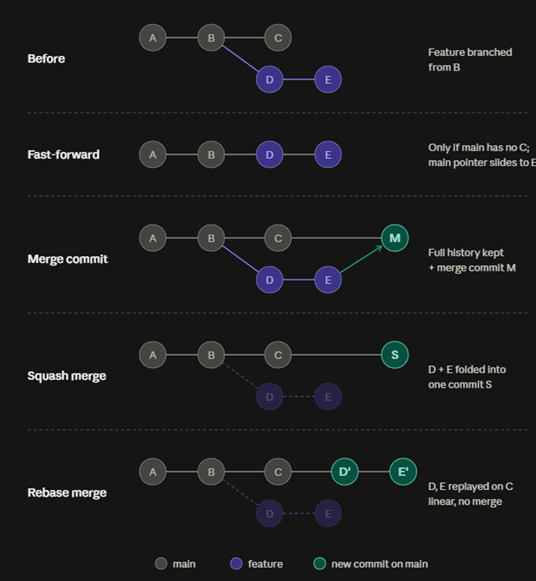
Git can perform different types of branch integration depending on the relationship between the branches, including fast-forward, three-way merge, squash merge, and rebase.
- Fast-forward merge – Moves the target branch pointer forward when there are no divergent commits.
- Three-way merge – Combines two branches using their common ancestor when the branches have diverged.
- Squash merge – Combines all changes from a branch into a single commit before merging them into the target branch.
- Rebase – Reapplies the commits from one branch on top of another branch, creating a linear commit history.
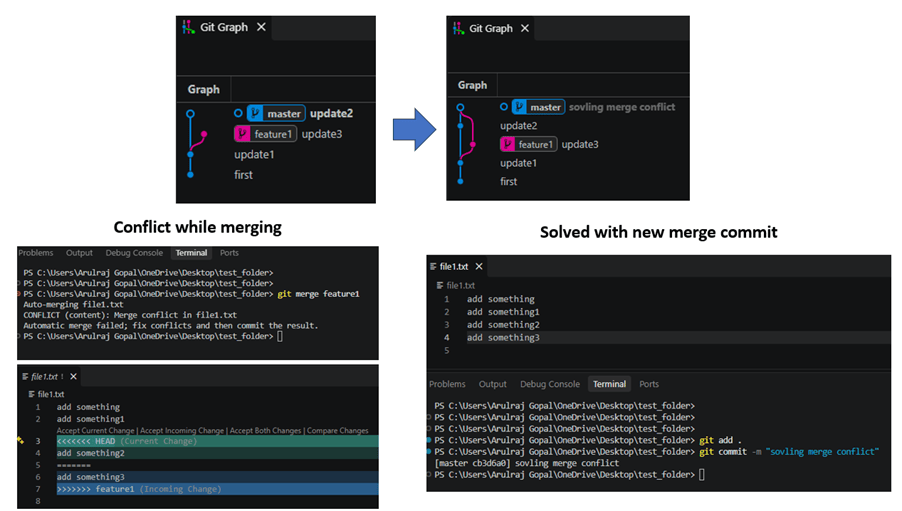
A merge conflict occurs when Git cannot automatically combine changes, typically because the same part of a file has been modified differently in the two branches.
When a conflict occurs, Git marks the conflicting sections and requires the developer to manually decide which changes should be kept. After resolving the conflicts, the files are staged and the merge can be completed with a new commit.
Rebase can also result in conflicts when Git cannot automatically replay a commit on top of the new base. In this case, the developer must resolve the conflicting changes and continue the rebase using git rebase –continue.
In short, merging or rebasing combines changes from different lines of development, while conflict resolution handles situations where Git cannot determine the correct changes automatically.
A fast-forward merge does not have a merge conflict because the target branch has no divergent commits; Git simply moves the branch pointer forward. A three-way merge, squash merge, and rebase can have conflicts when the changes being combined or replayed overlap or cannot be applied automatically.
Commands
git branch – list of branches
git switch – switch the branch and with -c flag new branch can be created
git merge – merge the branches
git rebase – Reapplies the commits from one branch on top of another to create a linear history.
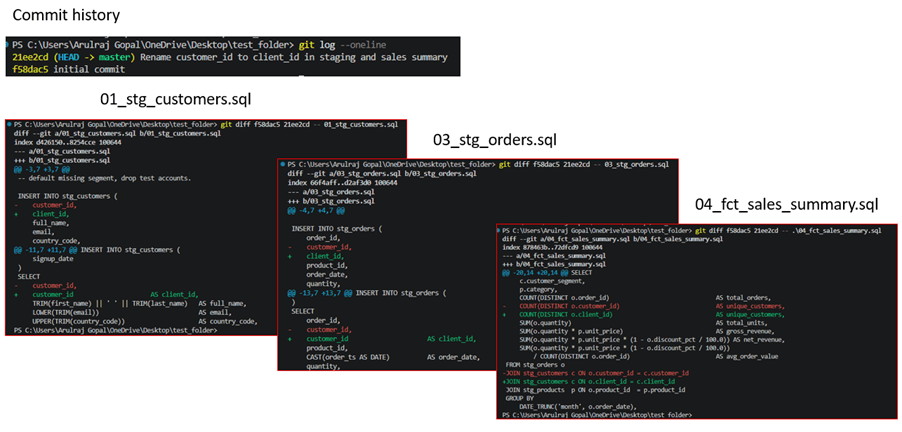
A demo for how a good commit should be.
- In the below commit, the field name change is the single logical change which captured in the single commit even if it is multiple files.
A demo of three-way merge having merge conflict and solving it.
Happy learning !!!
References

Leave a comment