In my previous article, I covered the importance of understanding Git in the AI era, along with basic commands such as add, commit, and diff, as well as the concepts of branching and merging.
These concepts are enough to get started with Git and understand the basics of version control.
Git serves two main purposes: version control and collaboration. The concepts discussed above address the first. Now, let’s focus on how to collaborate effectively using Git.
Before exploring the concept of remote repositories, it is important to understand that Git can be used without a remote, which is perfectly fine if you don’t need to collaborate.
However, real-world projects often require multiple collaborators to work together. This is why we need a remote repository to enable collaboration.
What is remote repository?
The project stored on your own machine is called a local repository, while a version of the project hosted on another server or in the cloud is called a remote repository.
How does Git know about the remote repository?
We need to tell Git about the remote repository by providing its URL, which Git stores in its configuration.
Every time I make a change (meaning I commit), or perform other operations such as creating or merging branches, Git tracks them in the local repository. To synchronize changes with the remote repository, Git uses remote-tracking branches.
This means that every local branch can have a corresponding remote branch in the remote repository.
- Remote tracking branches are read-only references to branches in the remote repository.
- You can’t commit directly to a remote tracking branch.
- If a remote branch is updated by other collaborators, you need to run git pull to bring those changes into your local branch.
- If your local branch is updated and you need to update the remote branch, run git push.
A git can have multiple remote repositories.
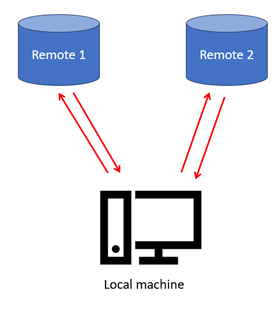
So, if I want to collaborate, do I need to host Git?
The answer is yes and no.
If I want to self-host the remote repository, then yes.
However, there are Software-as-a-Service (SaaS) platforms such as GitHub, GitLab, Bitbucket, and Azure Repos that can do this for us. We just need to create an account and connect our local repository to the remote repository.
I will use GitHub as the reference for the rest of this article and upcoming articles because it is widely used.
Let’s see how to set up a remote repository, synchronize it with the local repository, and explore the related commands.
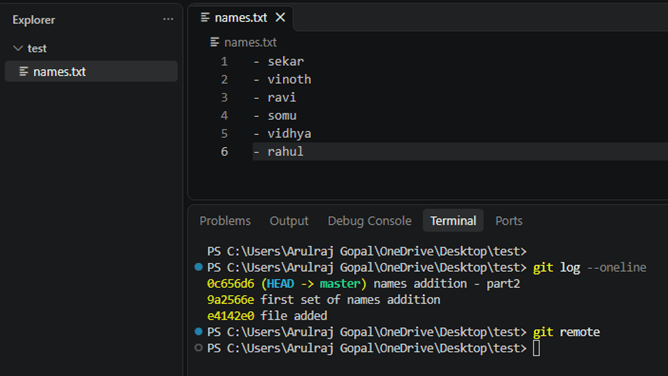
Local git created with some sample commits.
Remote repo created.
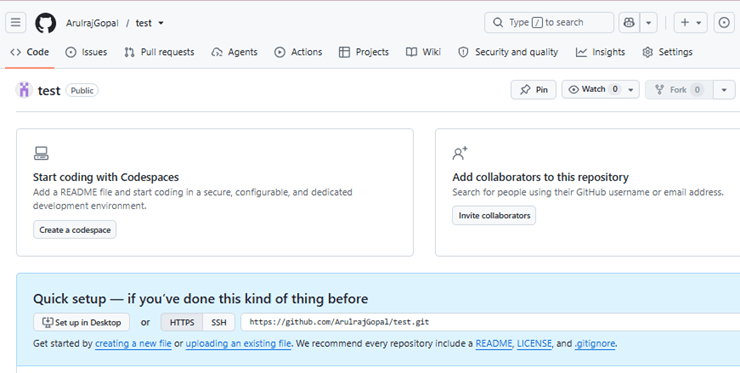
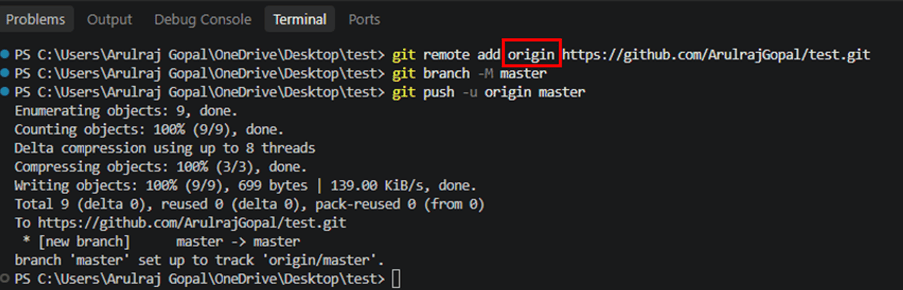
After authentication, add the remote repository to your local Git repository and push the code.
In the command below, the remote name is origin. You can use any name you prefer. Origin is most common name. If you need to have another remote mapping to same local, then we can do this with another name.
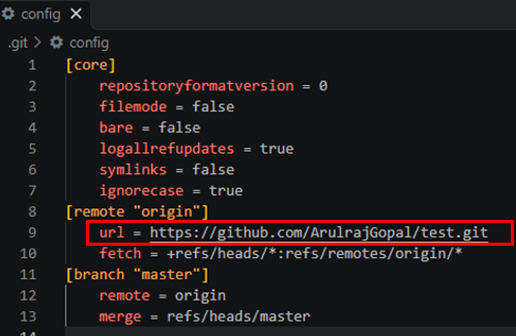
There is a folder named .git in the local repository that stores the information Git needs to manage the repository. I’ll explain this in an upcoming article, but for the sake of this demo just showing how the .git/config file keeps track of the remote repository configuration.
.git/config
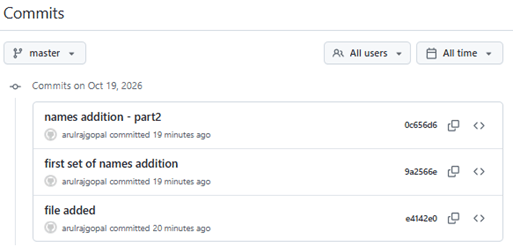
All the commits taken into github remote repository, we named as origin.
Now let’s explore how to sync continuously.
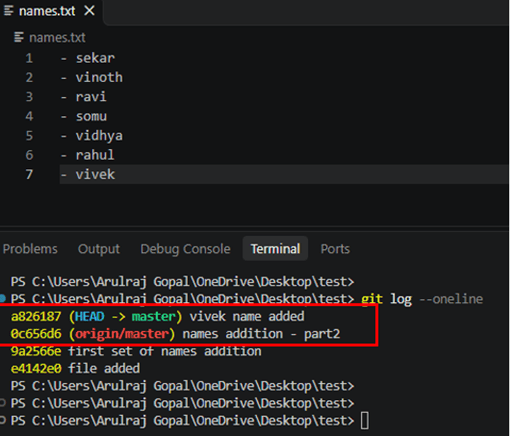
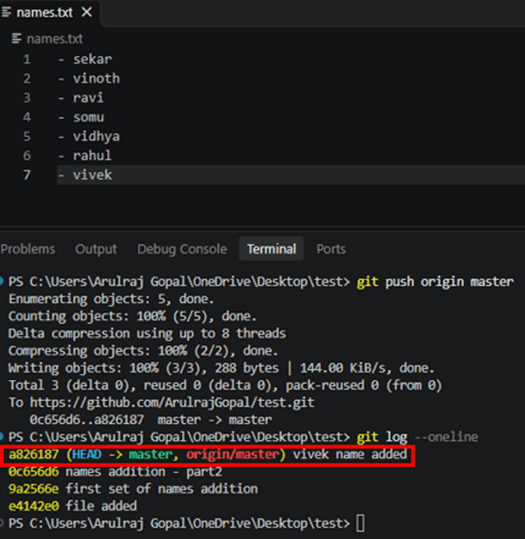
A commit was present locally but had not been pushed to the remote repository. When checking the Git log, it was apparent that the local and remote pointers were pointing to different commits. After running git push and specifying the remote name and branch name, the code was successfully pushed to the remote repository.
Now, suppose someone has updated the remote branch, and I need to bring those changes to my local branch. I can fetch the changes and then merge them.
First, let’s identify the differences using git fetch and git status.
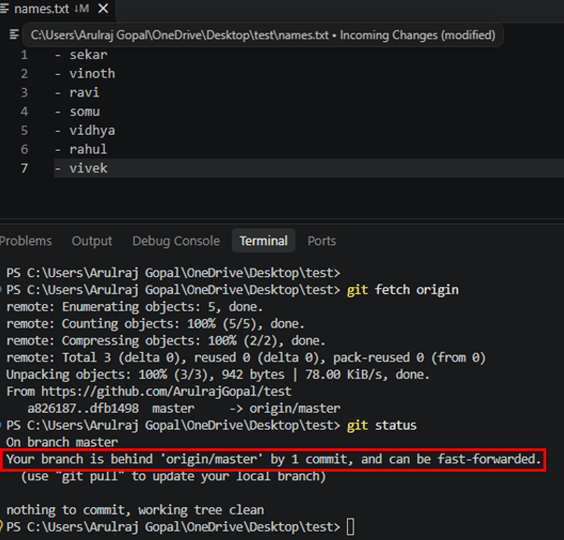
And then, the updates from remote is merged to the local branch.
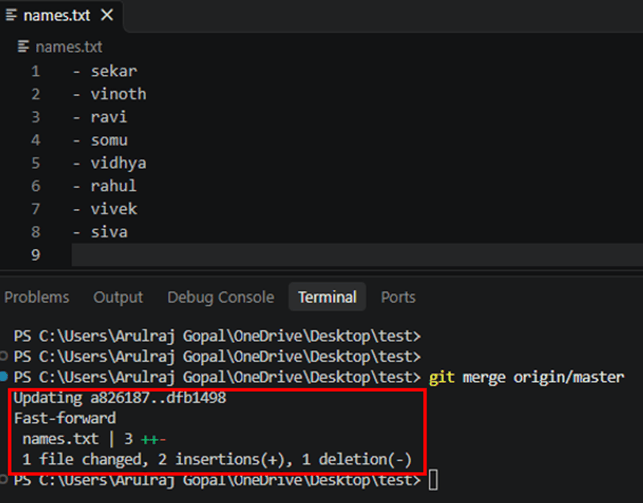
The git fetch and git merge commands are combined in a single command called git pull.
So, the next question might be: Why shouldn’t I always use git pull?
That’s perfectly fine when I don’t foresee any merge conflicts. Otherwise, it is recommended to run git fetch first and check for any conflicts. If there are conflicts, resolve them before merging.
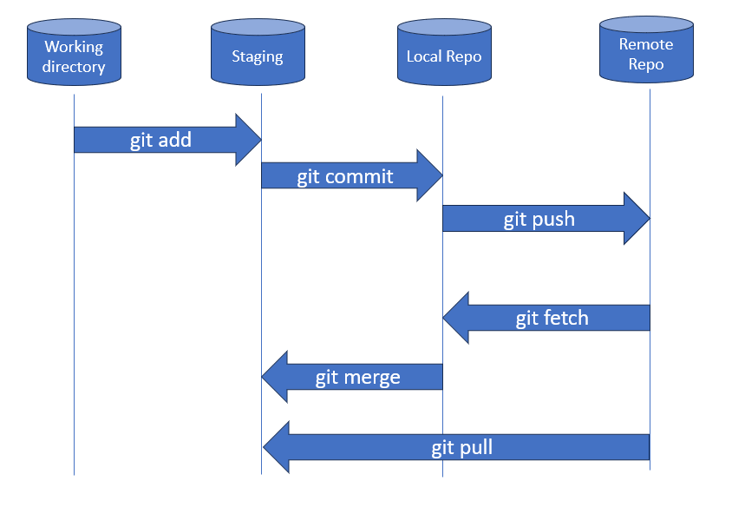
The diagram below illustrates how git add, git commit, git push, and git pull fit together logically.
Happy learning!!
References

Leave a Reply