Once an organization decides to adopt Databricks, the next critical responsibility is setting it up correctly and maintaining it effectively. Databricks is not a static platform — it offers multiple features, deployment models, and constantly evolving capabilities. Because of this, teams must understand both Databricks best practices and the specific needs of the organization before building anything.
A strong foundation is the key. This includes knowing the core components of Databricks, how they interact with each other, and the different levels of access, governance, and control available across the platform. Whether the goal is to build a production-grade environment or a simple proof of concept, clarity on these fundamentals helps avoid rework, security issues, and architectural mistakes.
That’s why I’m starting this article — to create a practical handbook for anyone who wants to set up Databricks the right way. This guide will walk through the essential concepts and components you must understand before jumping into the technical steps.
Before we proceed with the setup flow, let’s take a moment to understand a few important Databricks terms and components.
What is Databricks & Azure Databricks?
- Databricks is a unified, open analytics platform for building, deploying, sharing, and maintaining enterprise-grade data, analytics, and AI solutions at scale.
- Azure Databricks = Databricks platform + Azure integration. It is a data engineering, data analytics, and AI platform built on Apache Spark, fully managed by Microsoft and Databricks together.
Databricks Components

Databricks Accounts, Workspaces, Metastore and unity Catalog
- Accounts
- It is the top-level construct that you use to manage Azure Databricks across your organization.
- It exists in databricks SaaS control-plane boundary
- It allows to manage – identity & access, workspace management, unity catalog metastore management & Usage management
- It can be access through – https://accounts.azuredatabricks.net/
- When you create the first workspace, you can able to login into Databricks Account console.
- Workspaces – it functions as an environment to the data team to access the assets and apply workloads.
- Unity Catalog metastores are central governance system for data assets such as tables and ML models. You organize data in a metastore under a three-level namespace
- <catalog-name>.<schema-name>.<object-name>
- Metastore are attached to workspaces. You can link a single metastore to multiple Azure Databricks workspaces in the same region, giving each workspace the same data view. Data access controls can be managed across all linked workspaces.
- Below is the image from Azure Databricks documentation which represents how account, workspace and metastore can be used and integrated.

6. Unity catalog object model

7. Azure Databricks provides a legacy Hive metastore for customers that have not adopted Unity Catalog.
8. Databricks Admin types – There are different levels of admin privileges available on the Databricks platform:
- Account admins – manage the databricks account, workspace creation, user management, cloud resources, and account usage monitoring
- Workspace admins – manage workspace identities, access control, settings and features for individual workspace in the account.
- Metastore admins – The metastore admin is highly privileged user or group in Unity Catalog.
- There are other admin privileges available which is narrowed for specific features like – market place admin, billing admin
Databricks Setup flow
Before starting the setup, ensure the following are ready:
- An active Azure account
- Terraform installed on the base machine
In this demo, we will use Terraform to perform the complete setup.
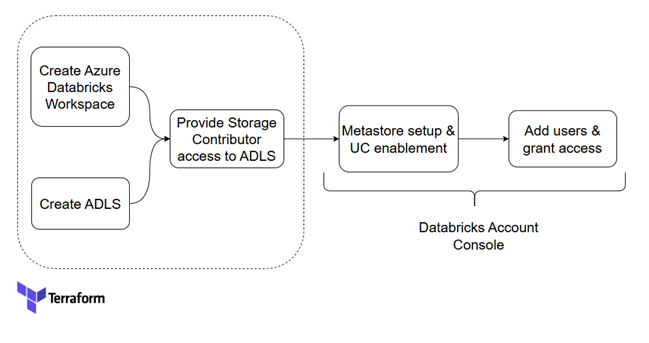
Note: As far as I know, I have covered bringing the infrastructure setup into IaC using Azure as the provider. But that doesn’t mean we must stop there. Once we introduce Databricks as a provider, there is much more we can automate and manage. I’ll explore those capabilities in upcoming articles.
Infrastructure setup through Terraform
Given terraform code will do the below infrastructure setup. Note, All the variables are added in environment variables.
- Create databricks workspace with resource group
- Create ADLS
- Provide storage contributor access to databricks unity catalog managed identity to access ADLS
https://github.com/ArulrajGopal/kaninipro/tree/main/databricks_setup_with_uc

Infrastructure created by applying the terraform code.

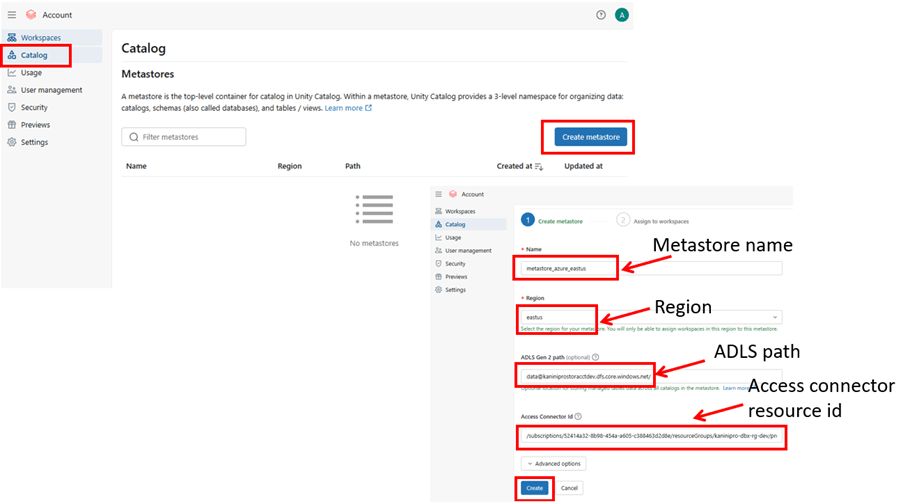
Metastore setup & UC enablement
- create metastore
- configure ADLS path
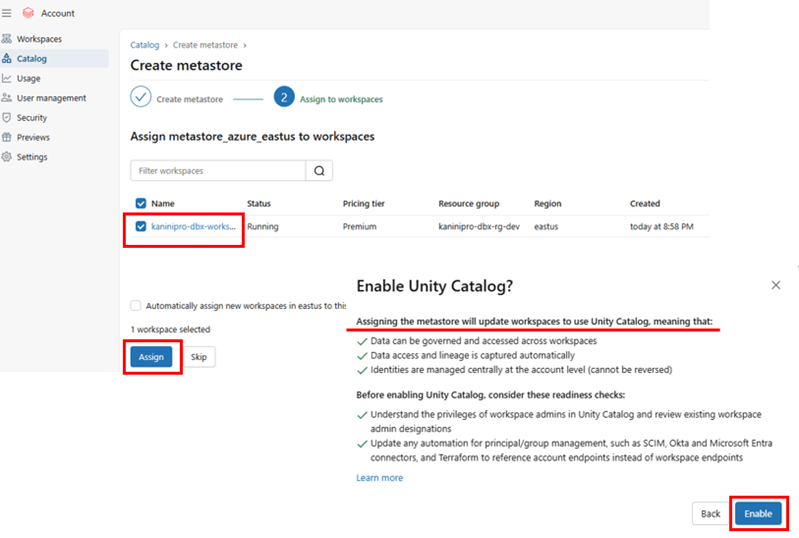
- assign workspace to metastore
- enable unity catalog
Before creating metastore, keep ready ADLS path and resource id of access connector which has storage contributor access to the storage account.
ADLS path: data@kaniniprostoracctdev.dfs.core.windows.net/
Resource ID of access connector:

Login to https://accounts.azuredatabricks.net/ – databricks account console using root id.
Create metastore, assign workspace and enable UC.
Add Users and grant access
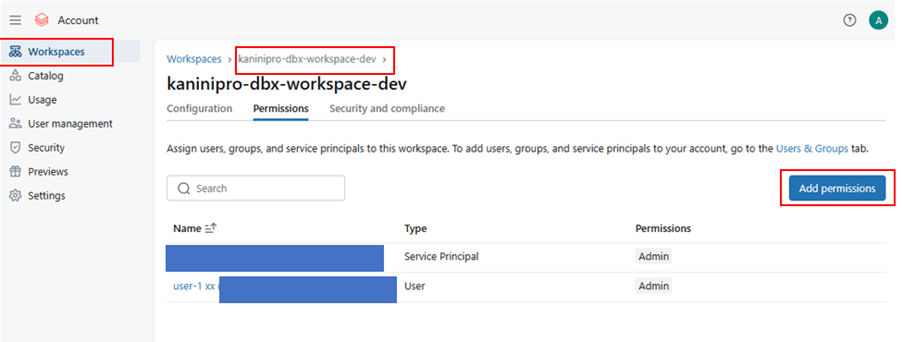
By default, only the root user available in the Microsoft Entra ID. Add necessary users.

As already mentioned, there are different level of access can be provided and maintained – Account level, workspace level & metastore level.
Account level privileges

Workspace level privileges
Metastore privileges

Note: When you create an Azure account using a personal email like Gmail or Outlook, Azure treats that account as an external (guest) identity inside Microsoft Entra ID.
Because of this, the account shows up in this format:

Example:
john_doe_gmail.com#EXT#@johndoegmail.onmicrosoft.com
This is completely normal.
You can use it for learning, testing, and adding RBAC roles.
You can also add more users later if needed.
Important points:
- Access connector is act as managed identity for Azure databricks and each databricks workspace have its own access connector.
- It is recommended to create each databricks workspace in each resource group, so that the respective access connector will be created in the same resource group without any conflicts.
- While creating the metastore, workspace mapped to metastore using access connector, this does not mean that only the that workspace belongs to the metastore. Whichever workspaces assigned will belongs to the metastore.
Below is the comparison, that once unity Catalog enabled.
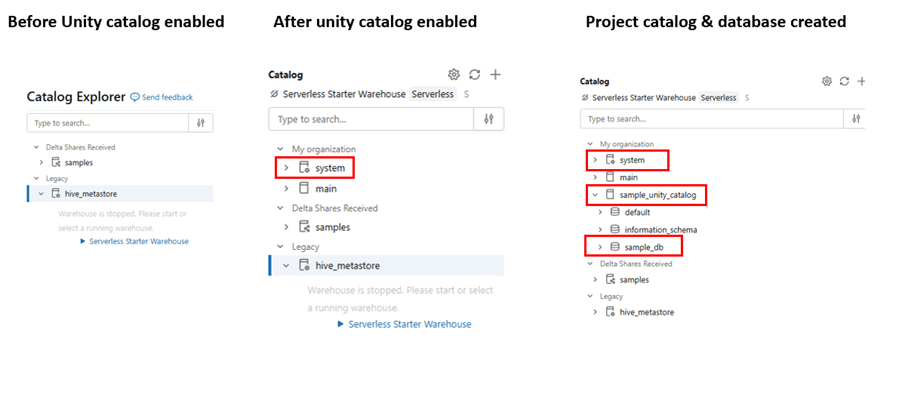
Note: – once unity Catalog is enabled system tables are visible.
System tables in Databricks are built-in, read-only datasets maintained by Databricks that store operational, usage, audit, and lineage information about your workspace and Unity Catalog.
- They help you monitor workloads, track user activity, analyse job performance, and troubleshoot issues without building your own logging system.
- They are essential for governance, cost optimization, security auditing, and end-to-end data lineage.
You can read more about system tables in another article.
Hurray !!! finally we have databricks ready with unity catalog enabled.!!!
References
 KaniniPro
Leave a comment